
Why audio to text is so useful today
Audio is everywhere now. People record voice notes, online meetings, interviews, classes, podcasts, and customer calls every day. But audio is not always easy to search, copy, share, or review. That is why converting audio to text has become so popular. When you have a transcript, you can quickly scan what was said, highlight important parts, and find exact words using search. Text also helps you reuse content: one recording can become a blog post, an email summary, captions for videos, or notes for a report. For students, transcription makes studying easier because you can read the lesson again and pull out key definitions. For creators, it supports faster editing and better SEO, because written content can be indexed by search engines while audio cannot. For teams, transcripts bring clarity and reduce confusion after meetings. A simple audio to text workflow can save hours, and using a free tool makes it even better for anyone who does not want extra costs.
What makes a good free transcription tool
Not all audio to text tools feel the same, even if they are free. A good tool should be simple to use: upload your file, choose the language, and get the text. It should support common formats like MP3, WAV, M4A, and sometimes video files too, because many people record audio inside videos. Speed matters as well. If the tool is slow, it breaks your workflow, especially when you need a transcript for work or school. Accuracy is another big point. While no automatic transcription is perfect, a strong tool handles different accents, normal background noise, and everyday speech without turning the transcript into a mess. Privacy is also important. People often upload meetings, interviews, or personal voice notes, so the website should explain how files are handled and how long they are stored. Finally, the best free tools make it easy to copy and export text, so you can move it into Google Docs, Word, email, or your note app without trouble. Audiototextfree.com focuses on a straightforward experience, which is what most users want when they just need audio turned into readable text quickly.
Step by step guide to turn audio into text
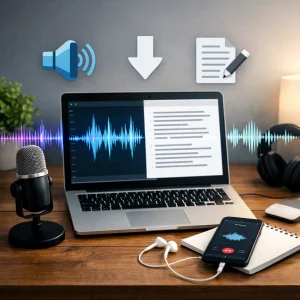
Converting audio to text is usually easier than people expect. First, prepare your audio file. If possible, use a clear recording with the speaker close to the microphone. Then open audiototextfree.com and find the upload option. Select your audio file and confirm the correct language. If the tool offers extra settings, choose the ones that match your recording, such as a mode for conversation or a single speaker. After you start the transcription, wait for the text to be generated. When the transcript appears, read through it once and fix small mistakes. Most errors happen with names, technical terms, or words that sound similar. If your audio includes multiple speakers, you can improve readability by adding simple speaker labels like “Speaker 1” and “Speaker 2,” even if the tool does not add them automatically. Then copy your final text or download it if an export option is available. A good habit is to save both the original audio and the final transcript in a folder with clear names and dates, so you can find them later. This basic process works for voice notes, interviews, lectures, and meeting recordings.
Tips for better accuracy and cleaner transcripts
Small changes in your recording can make a big difference in transcription quality. Start with the audio itself. Record in a quiet room and avoid loud keyboards, fans, and traffic noise when you can. If you are recording an interview, place the phone or microphone between the speakers rather than closer to just one person. Speak at a natural pace and avoid talking over each other. If you are running a meeting, ask people to pause for a second before responding, because overlapping speech is one of the hardest things for automatic transcription. If you already have a recording with some noise, you can still get good results by trimming long silent parts and removing very loud sections before uploading. Once you have the text, do a quick edit pass. Focus on names, product titles, and numbers, because these are the details that matter most. You can also improve readability by adding punctuation and breaking long paragraphs into shorter ones. If you plan to publish the transcript, consider removing filler words like “um” and “you know,” unless you need a word-for-word record. These simple steps help you get a transcript that feels clean, professional, and easy to use.
Common use cases and how to use transcripts
People use free audio to text tools for many practical reasons. Students turn recorded lectures into study notes and then highlight key sections before exams. Job seekers transcribe interviews or practice sessions to spot weak answers and improve. Podcasters convert episodes into show notes and blog posts, which helps new listeners discover the content through search. Businesses transcribe meetings to create action lists and reduce missed tasks, and customer support teams use transcripts to track common issues and improve responses. Transcripts are also helpful for accessibility. Adding text versions of audio content supports people who are deaf or hard of hearing, and it helps anyone who prefers reading over listening. Once you have a transcript, you can repurpose it in many ways: summarize it into bullet points, pull out quotes for social media, create subtitles, or build FAQs from repeated questions. If you want to keep things organized, store transcripts by project and date, and include keywords in the filename so you can find them quickly later. With a simple free workflow on audiototextfree.com, audio becomes usable text that you can search, share, edit, and build on whenever you need.


